

The Jira integration pulls issues from your Jira Cloud instance into Statisfy as tasks linked to the right customer accounts. After the one-time OAuth connection, you control which projects sync, how issues map to accounts, and which Jira fields land on the Statisfy task — all from Integrations → Jira → Settings, without contacting support. This page covers both Jira Software / Business projects and Jira Service Management (JSM) projects. You can find the shared self-serve concepts — resolvers, field mappings, schedules, configuration history — in Integration Concepts.Documentation Index
Fetch the complete documentation index at: https://help.statisfy.com/llms.txt
Use this file to discover all available pages before exploring further.
Video Tutorial
What Statisfy Pulls from Jira
| Data Type | Description |
|---|---|
| Support tickets | JSM tickets (Service Management projects) |
| Customer requests | Issues from Software / Business projects (feature requests, bugs, account-specific work) |
| Task fields | Configurable list of Jira fields → Statisfy task fields (custom and system) |
| Account fields | Configurable list of Jira fields → Statisfy account custom fields |
Prerequisites
- Admin access to both Jira and Statisfy
- Jira Cloud (Server / Data Center is not supported through the self-serve flow)
- The Jira projects you want to sync are accessible to the account that runs the OAuth connection
Connect Jira to Statisfy
- Log in to Statisfy.
-
Navigate to Integrations → Admin Apps → Jira → Connect.
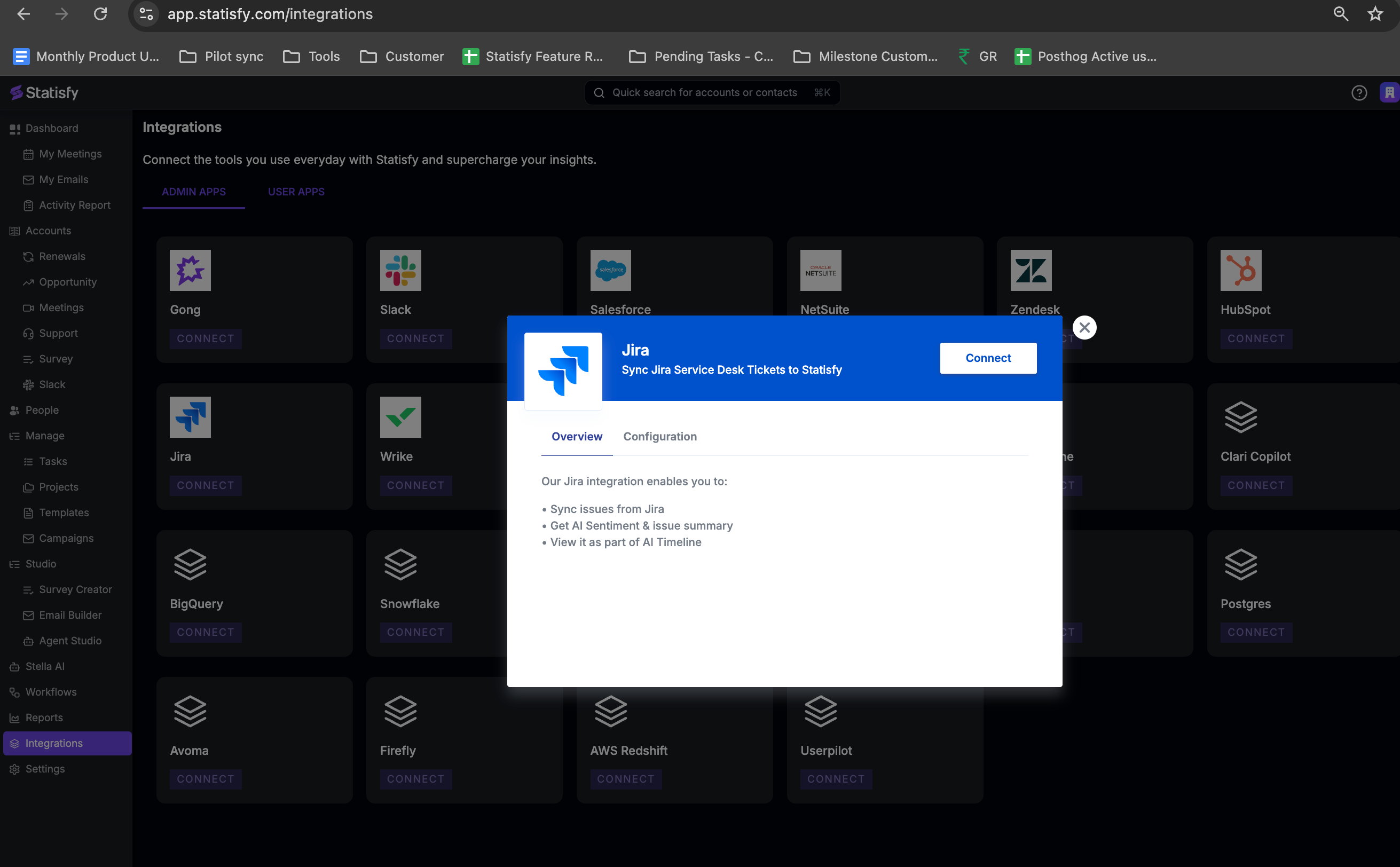
- Complete the OAuth authorization flow to grant Statisfy read access to your Jira instance.
- Once connected, Jira appears as Connected on the Integrations page.
Jira and Jira Service Management are configured separately. If you use both, connect each one and configure its own project rules. They appear as two integrations: Jira and Jira Service Management.
Configure Project Rules
Open Integrations → Jira → Settings. The settings page is organized around project rules: each rule is a saved configuration for one Jira project (and, optionally, a subset of its issue types) that tells Statisfy how to handle issues from that project. You can have multiple rules per project — for example, one rule forBug and Story issue types in the PROD project, and a different rule for Epic issues in the same project with different field mappings and customer-matching logic.
Anatomy of a Project Rule
Each rule has the following sections:| Section | What it controls |
|---|---|
| Project Key | The Jira project the rule applies to (e.g., PROD, CS, SUPPORT) |
| Project Type | software, service_desk, or business — auto-detected from Jira |
| Issue Type Filter | (Optional) An include or exclude list of issue type names. Omit for “all issue types in this project” |
| Customer Resolution | Chain of resolvers tried in order — first match wins |
| Field Whitelist | Which Jira fields to copy to the Statisfy task and to the linked account |
| Creates Task | Toggle. When off, the rule writes account fields but does not create a Statisfy task |
| Support Multiple Customers | Toggle. When on, a single issue can link to multiple accounts |
| Active | Toggle. Inactive rules are kept for reference but don’t run |
Add a Project Rule
- On the Settings page, click Add Project Rule.
- Pick the project from the dropdown — Statisfy lists projects your OAuth user can access.
-
(Optional) Add an Issue Type Filter — pick
includeorexcludeand choose one or more issue type names. Leave empty to match all issue types in the project. - Configure Customer Resolution (next section).
- Configure Field Whitelist (next section).
- Save. The rule will run on the next scheduled sync; use Run Sync Job to pull immediately.
Customer Resolution
Customer resolution decides which Statisfy account each Jira issue belongs to. You configure a chain of resolvers — Statisfy tries each in order and stops at the first match. This handles cases where, for example, an Organization field is set on most issues but a few rely on a Reporter’s email domain. Each resolver in the chain has:- Resolver type — how the value identifies an account
- Source — which Jira field, custom field, or attribute to read
- Transforms (optional) — reshape the value before matching (strip a prefix, regex-extract, etc.)
| Resolver | What the source should provide |
|---|---|
| CRM Account ID | Salesforce / HubSpot account ID stored on the issue |
| Statisfy Account ID | Native Statisfy account ID stored on the issue |
| Organization ID | An external org identifier stored on the issue or organization |
| Email Domain | The reporter’s email domain, or any field that contains a domain |
| Account Name | A company name field (fuzzy matching, with a tunable cutoff) |
| Custom Field | Any Statisfy account custom field, matched against the issue’s value |
Source examples
The “source” for a resolver can be:- A standard Jira field (
reporter,assignee,summary) - A custom field — referenced by Jira custom field ID (
customfield_10101) or by display name (Customer Account) - A path into the reporter’s profile (
reporter.emailAddress) - A JSM Organization
Transforms before matching
If the source value isn’t quite what the resolver expects, chain one or more column transformers before it:strip_prefix, regex_extract, split_first_token, lookup, skip_if_equals, skip_if_contains. For example: extract a domain from an email with regex_extract (@(.+)$), or strip a crm_ prefix from a custom field value.
Support Multiple Customers
By default, each issue links to at most one account. Toggle Support Multiple Customers on if a single issue legitimately belongs to several accounts (for example, a multi-tenant incident). Statisfy will write the task and any account-field updates against every match.Field Whitelist
The field whitelist controls which Jira fields are copied to Statisfy, and where. There are two whitelists per rule:- Task fields — copied to the Statisfy task created from the issue
- Account fields — copied to the Statisfy account the issue resolves to
- Jira field — by custom field ID or display name
- Statisfy field key — the target custom field on the task or account
| Jira Field | Statisfy Task Field |
|---|---|
Priority | task_priority |
customfield_10042 (Severity) | severity |
assignee.displayName | engineering_owner |
| Jira Field | Statisfy Account Field |
|---|---|
customfield_10100 (Renewal Risk) | renewal_risk_flag |
customfield_10101 (Last Outage Date) | last_outage_date |
Tenant-level defaults
You can set a tenant-level default whitelist that applies to every rule. Per-rule whitelists override the defaults — useful when one project needs a totally different mapping but most projects share the same handful of fields.Projection Mode (creates_task = false)
Some Jira projects are useful as a signal source on the account, but you don’t want every issue to become a task in Statisfy. For those, turn off Creates Task on the rule. In projection mode, the rule still:- Resolves each matching issue to an account
- Applies the account field whitelist (copies Jira fields to the account)
- Create a Statisfy task for the issue
Schedule
Project rules inherit the integration’s default cadence (typicallyWEEKLY). To run a rule more often, override the schedule on the rule — HOURLY through MONTHLY are available. See Schedule.
Sync Behavior
Scheduled Jobs:- Each rule pulls issues updated since the last sync.
- The first run after connecting is a bootstrap covering the last 30 days; subsequent runs only fetch deltas.
- Inactive rules are skipped.
- Per-rule errors are logged but do not block other rules from running.
- Issues that match no resolver are skipped (logged for audit).
Run a Sync On Demand
Use the Run Sync Job button on the settings page to enqueue an immediate sync without waiting for the schedule. The job’s status (queued / running / completed / failed) and timestamps show on the same page.Configuration History
Every save creates a new version. The header shows whether the active config isDatabase (vN), Default (Code), or Not Configured. See Configuration History.
Security
- The OAuth connection uses read-only Jira scopes — Statisfy cannot modify issues, projects, or users.
- Tokens are stored encrypted in Google Cloud Secret Manager and refreshed automatically.
- Project rules are only ever applied to projects your OAuth user can access — losing access to a project in Jira immediately stops Statisfy from pulling it.
Troubleshooting
No issues are syncing
No issues are syncing
- Confirm there is at least one active project rule.
- Check that the OAuth user can see issues in the project (sign in to Jira as that user and open the project).
- Use Run Sync Job and watch the job status — failures show the underlying error.
Issues sync but don't link to accounts
Issues sync but don't link to accounts
- Verify the Customer Resolution chain points at a field that is actually populated on the issues.
- Run a preview in the rule editor — Statisfy will show the resolver result for a sample of issues.
- Add a fallback resolver (e.g., email domain) to handle issues missing the primary identifier.
- For Custom Field resolvers, confirm the Statisfy custom field is populated on the target accounts (the value on the issue has to match a value on the account).
A Jira field isn't showing up in Statisfy
A Jira field isn't showing up in Statisfy
- Confirm the field is in the rule’s Field Whitelist (task or account, depending on where you expect it).
- Confirm the Statisfy custom field exists in Object Manager with a compatible type.
- For custom fields, prefer the Jira custom field ID (
customfield_10042) over the display name to avoid ambiguity if a field is renamed.
Wrong issue types are being pulled
Wrong issue types are being pulled
- Use the rule’s Issue Type Filter with
includeto whitelist exactly the types you want, orexcludeto drop noisy ones (e.g.,Sub-task). - Filters are applied at sync time, so changes only affect issues fetched after the next run.
One issue should create tasks for multiple accounts
One issue should create tasks for multiple accounts
- Turn on Support Multiple Customers on the rule.
- Configure resolvers that can produce multiple matches (e.g., a multi-value custom field of organization IDs).