

Documentation Index
Fetch the complete documentation index at: https://help.statisfy.com/llms.txt
Use this file to discover all available pages before exploring further.
Video Tutorial
This article will guide you through the Opportunities Overview feature, helping you understand its various views and their significance. Step 1: Start by exploring the Opportunities Overview. This view displays all open opportunities, their count, and their total current value.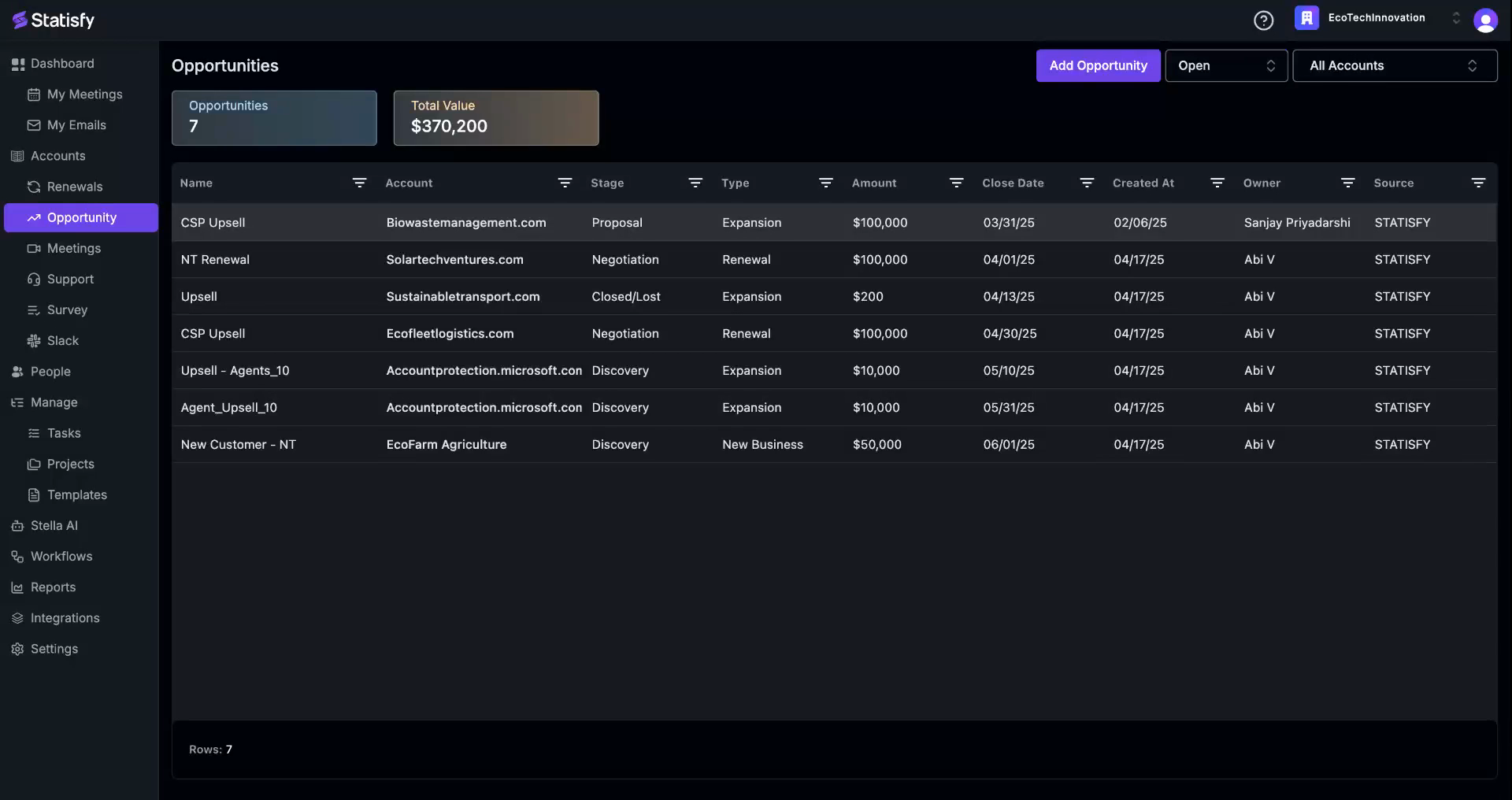 Step 2: Take note of the first column. It provides the opportunity’s name, associated account, current stage, type, total value, expected closure date, creation date, owner, and source. If the opportunity was manually created, the source will be marked as ‘Statisfy’. If it’s integrated with a CRM tool, the source will be ‘CRM’.
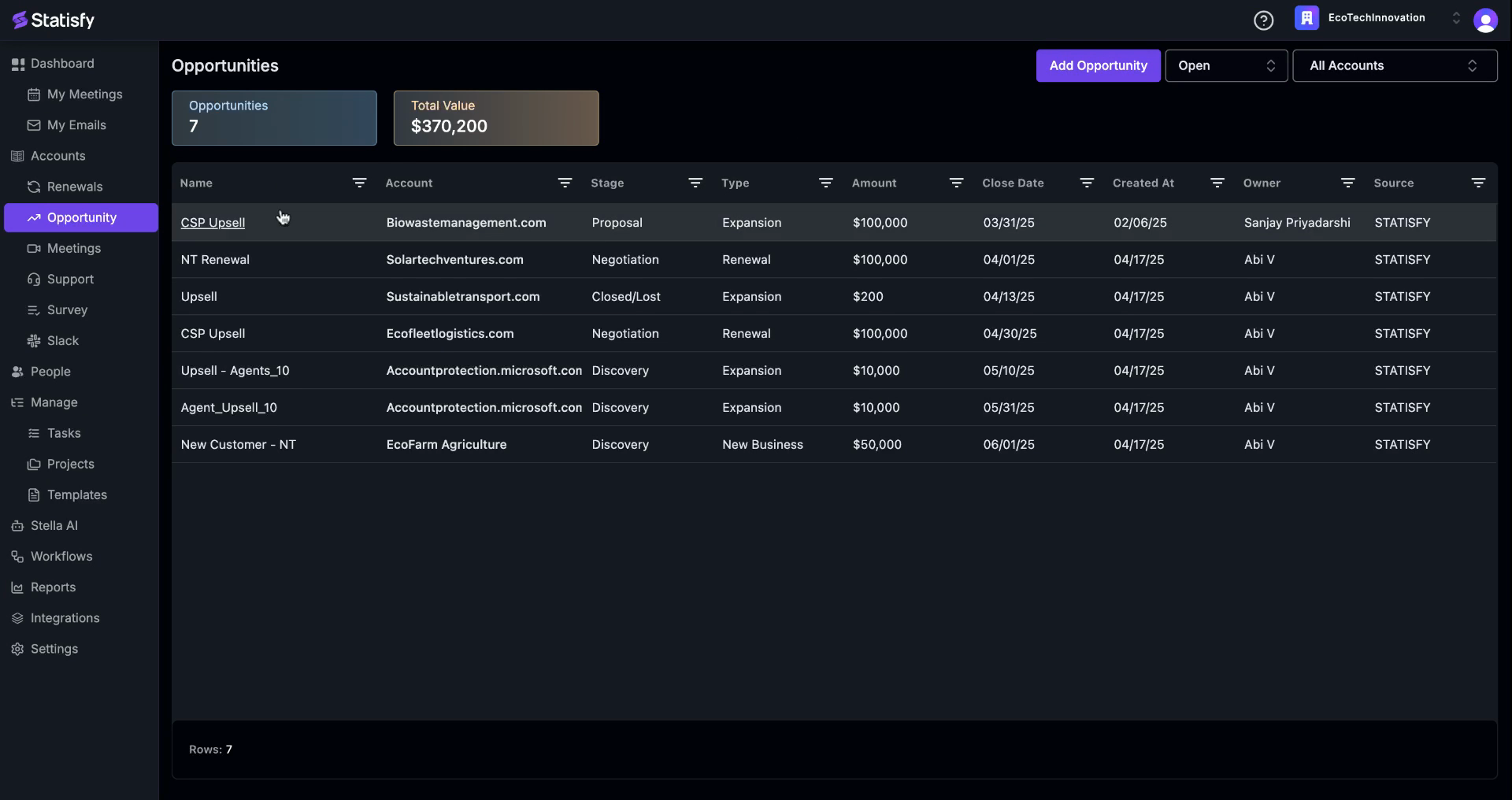 Step 3: Move to the next view, the ‘Open’ view.
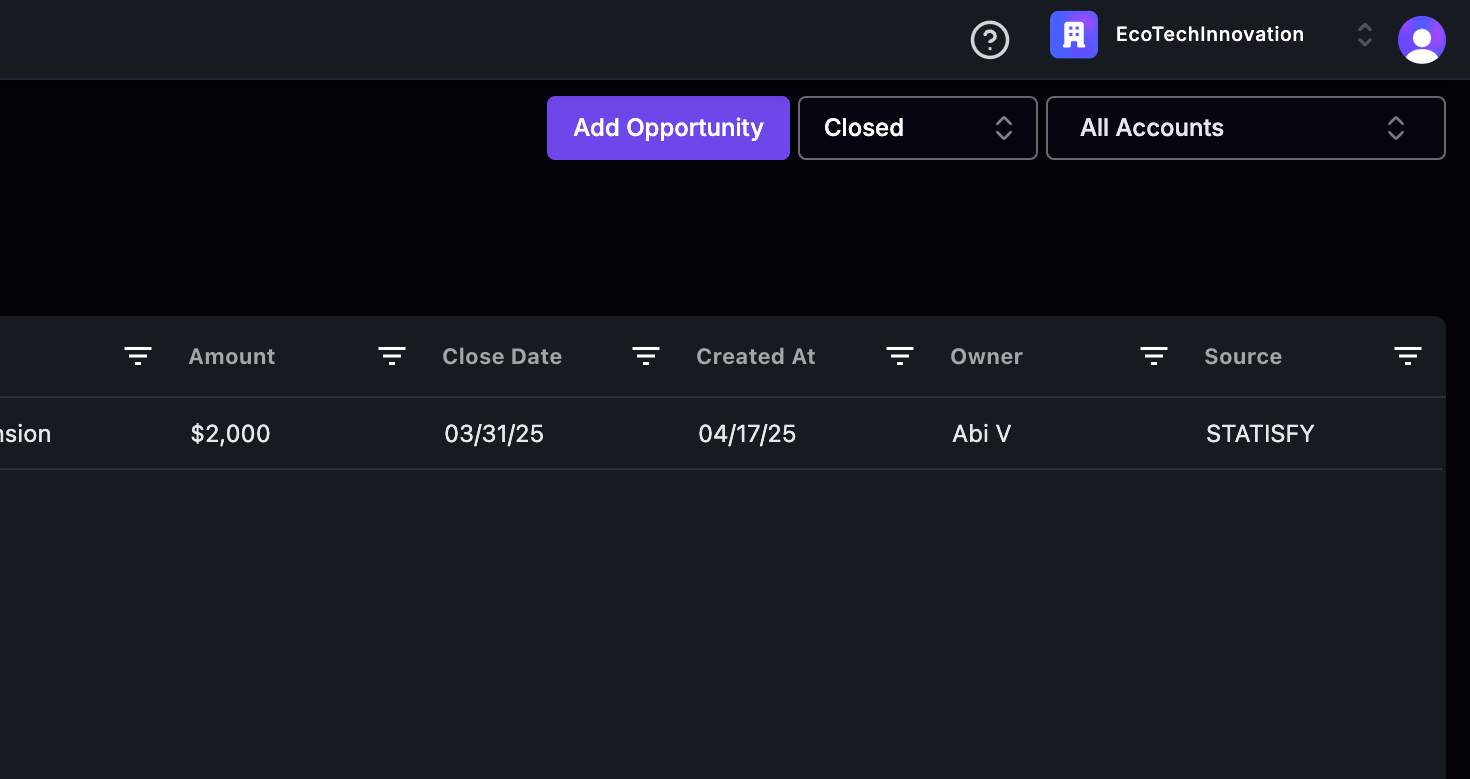
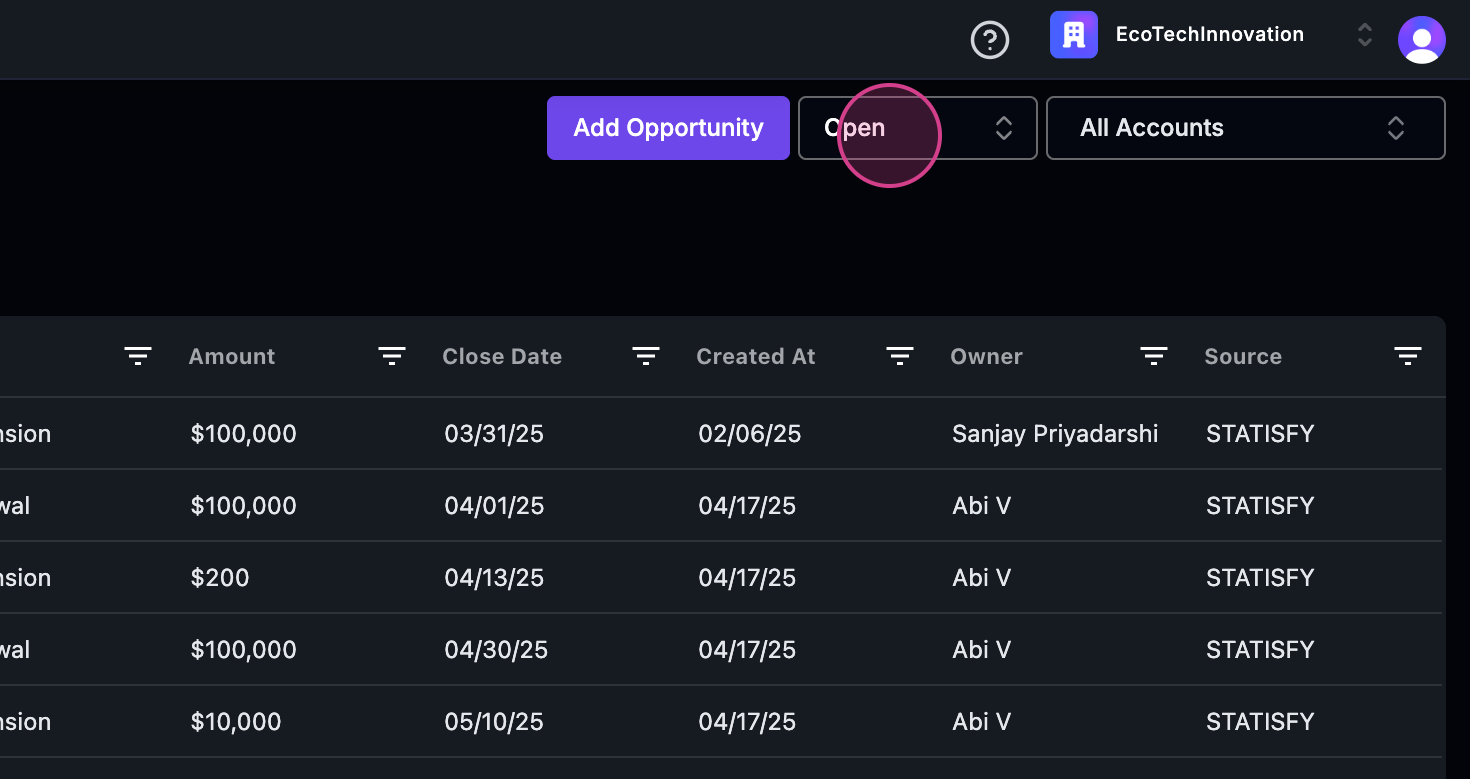 Step 4: Switch to the ‘Closed’ view. This view displays two options: ‘Closed Won’ and ‘Closed Lost’. Currently, only ‘Closed Won’ data is available. As you gather more data, it will populate here. The top of the view shows the number of closed opportunities and their total value.
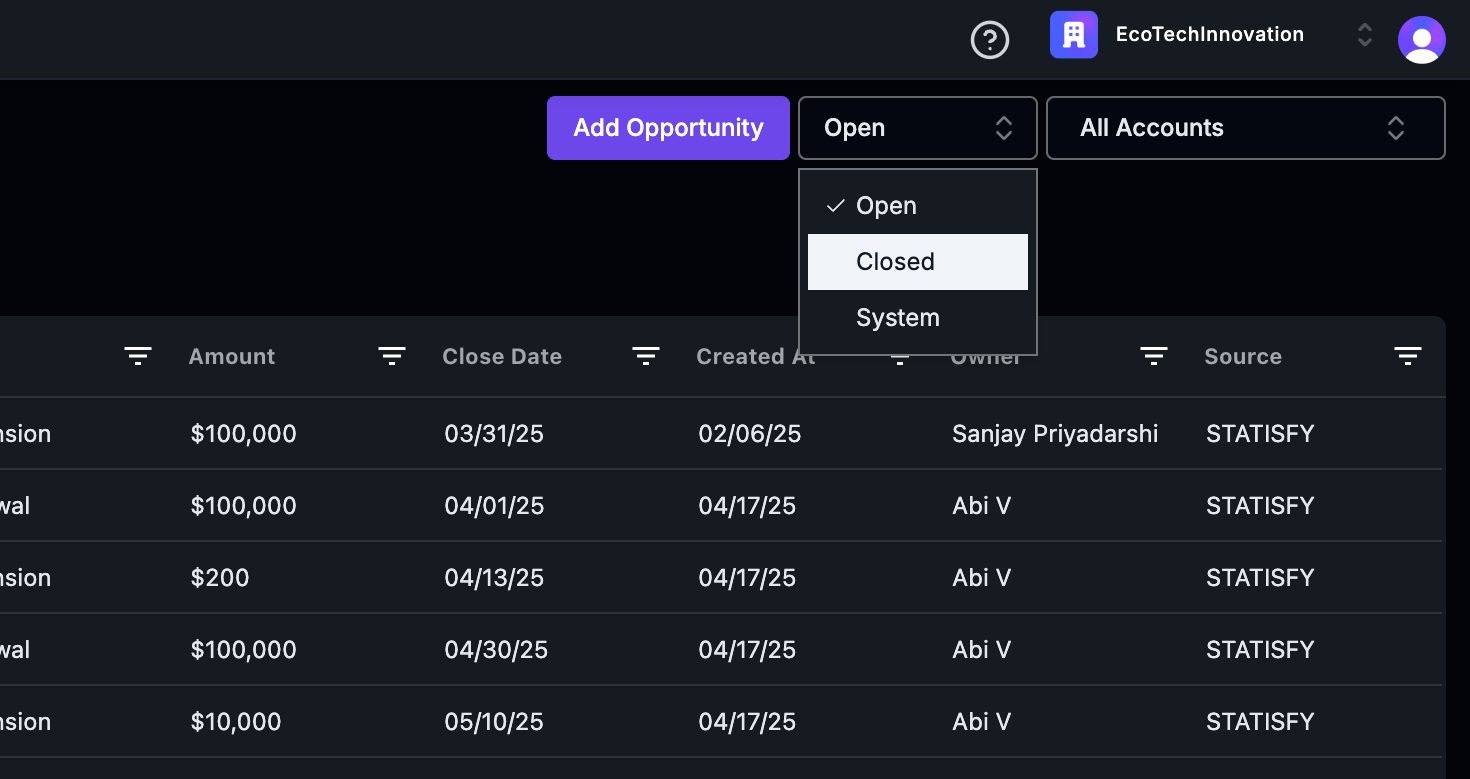
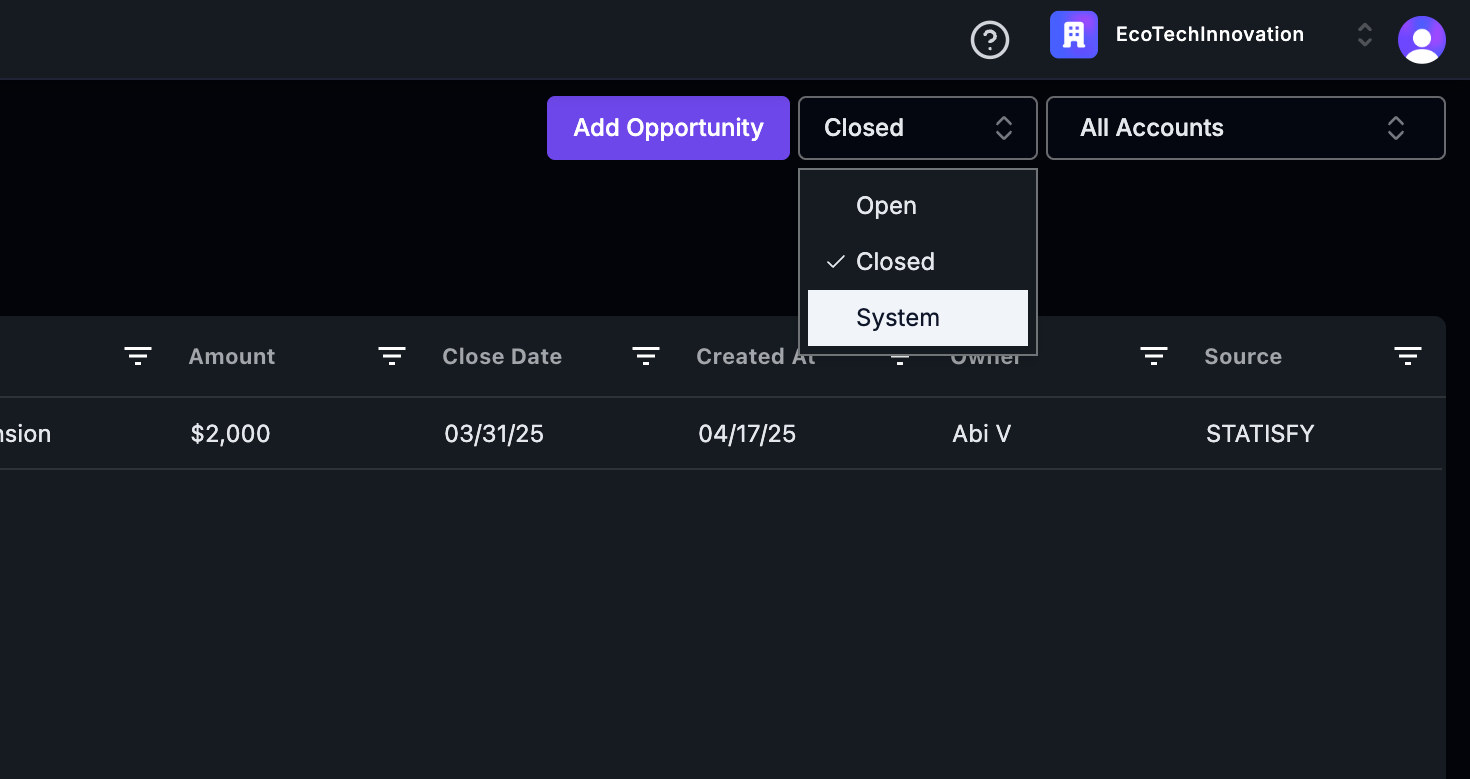
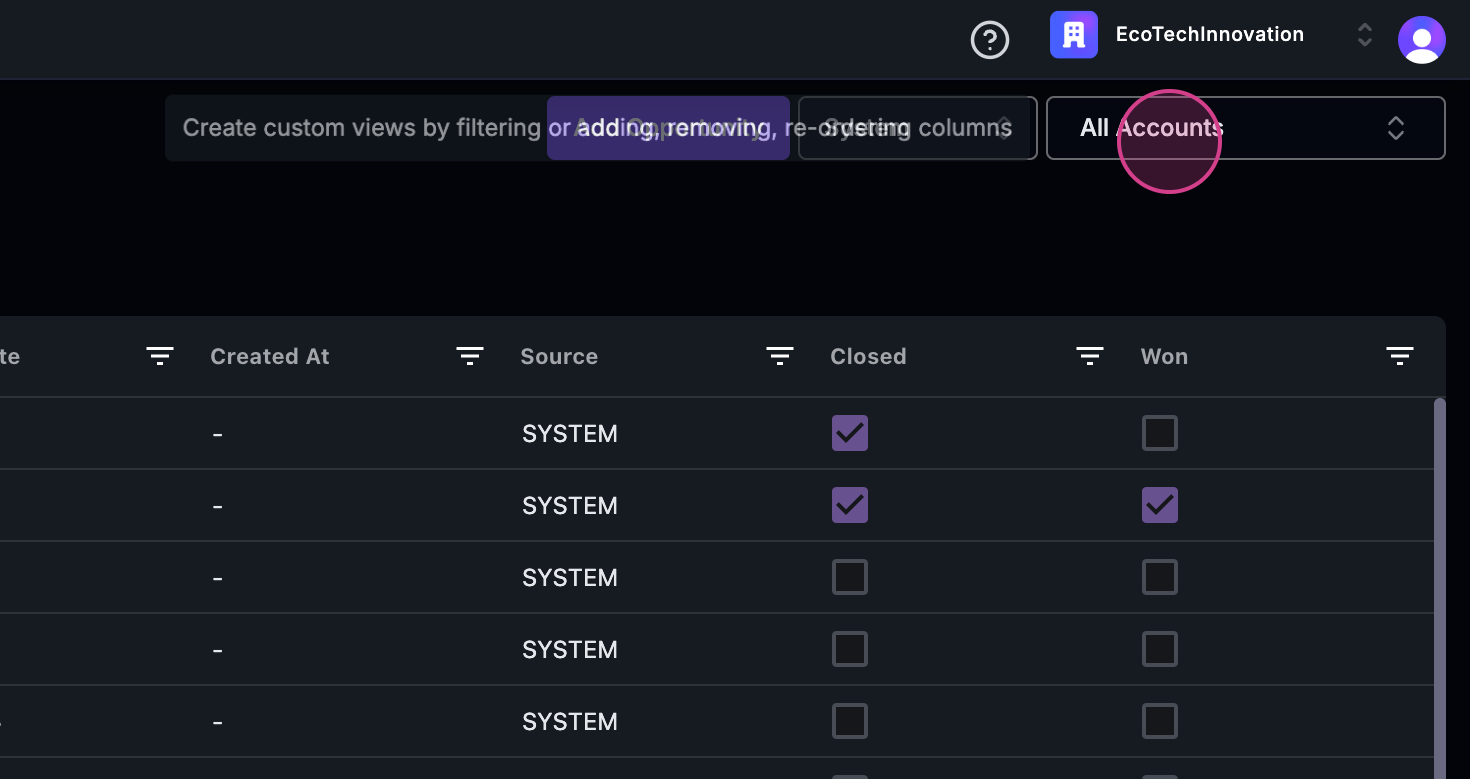
 Step 5: Finally, explore the ‘System Value’ view. This view creates an opportunity with an account link whenever an account has an upcoming renewal. The type will be marked as ‘Renewal’. The MRR value and Close date will be provided, but the Created date will be empty. The source will always be ‘System’. If the opportunity is closed, the checkbox will be checked. If the renewal has occurred, it will be checked here. The ‘Won’ status will also be checked.
 Step 6: Understand that all CSMs have their own account books. Therefore, the ‘My Book’ view will be visible to the CSMs.
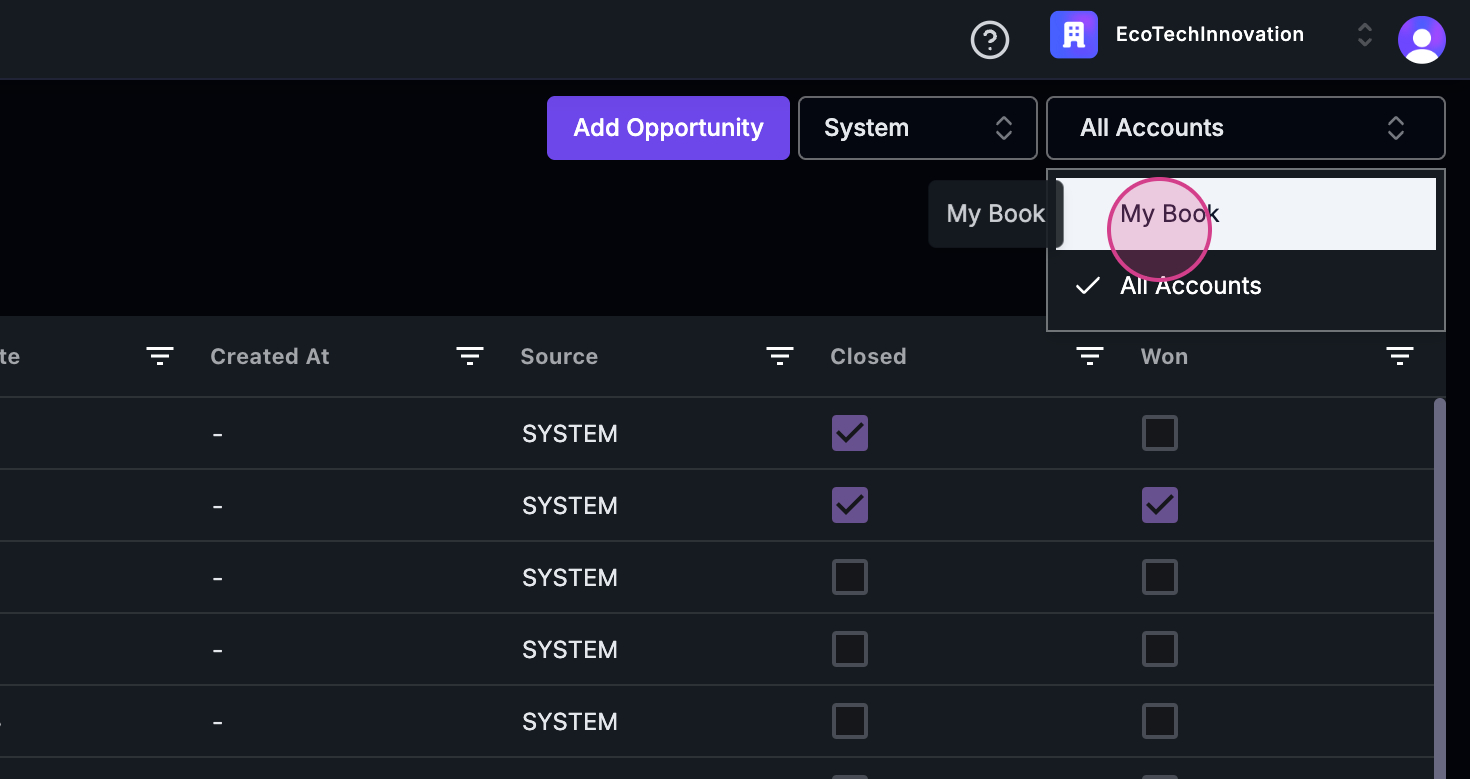 Step 7: If you’re an admin, you’ll see all the opportunities created in your book of accounts.
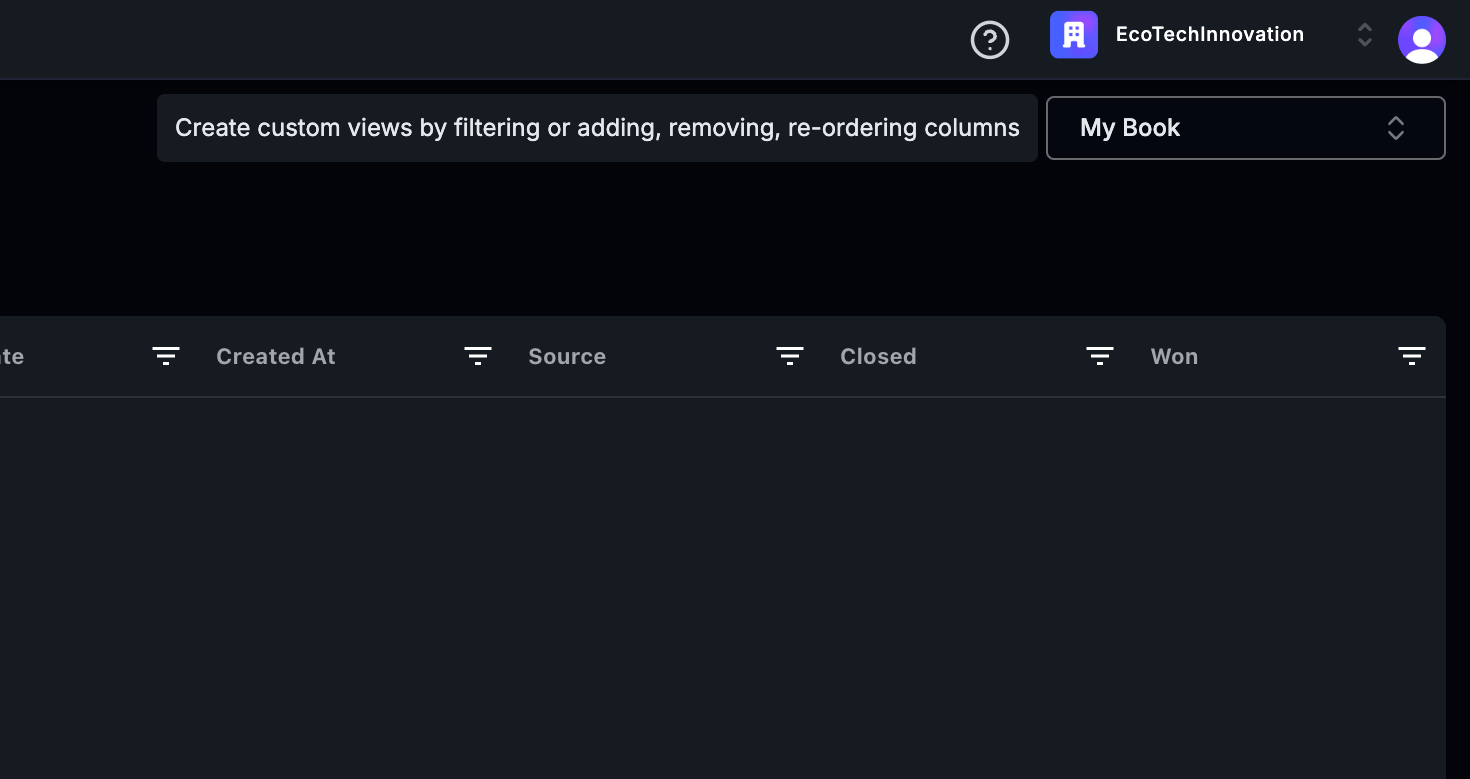
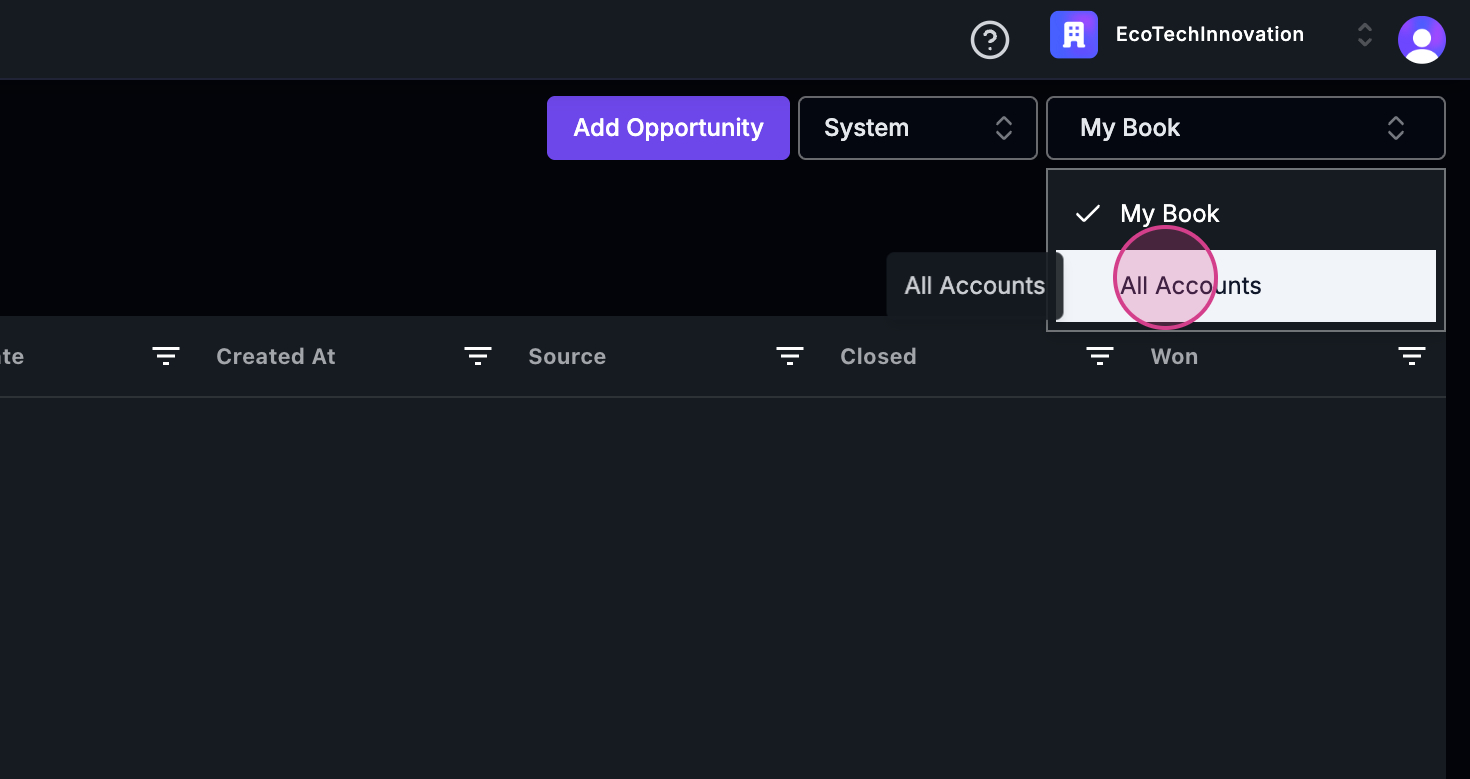 By following these steps, you’ll gain a comprehensive understanding of the Opportunities Overview feature.
Archived Opportunities
Use the type selector at the top of the Opportunities page to switch between Open, Closed, System, and Archived views. The Archived view shows opportunities that have been removed from your CRM or otherwise soft-deleted — Statisfy keeps them so you retain historical context for pipeline reporting, prior renewals, and win/loss analysis after the source record is gone.What You Can Do with Archived Opportunities
| Action | Available? |
|---|---|
| Open the record and view all fields, owner, stage history, and the linked account | Yes |
| Use them in dashboards and reports for historical analysis | Yes |
| Edit fields, change stage, or push changes back to your CRM | No — archived records are read-only |
| Restore manually from inside Statisfy | No — restoring happens automatically when the upstream record is restored in your CRM |
If a CRM record is restored upstream (e.g., un-deleted in Salesforce or HubSpot), the corresponding Statisfy opportunity automatically moves back into its original view (Open / Closed / System) on the next sync.